chart-barPlayer Analytics

Player Analytics in Hub88's Operator Backoffice provides an overview of all player activity through two main interfaces: the Table View for broad segmentation and the Player Profile, a detail view of player activity for deep-dive investigation.

Table View

The Table View displays a list of all players who have interacted with your content. It allows you to sort and narrow down your player base efficiently.

You can filter the table by:

  • Date

  • Product

  • Country

  • Currency

  • Device

You can also search for an exact player ID and save your specific filtration settings as a segment, similar to other pages in the Backoffice.


Player Profile

You can access the detailed view of a player by clicking on any player row or name in the Table View.

The player profile provides a comprehensive overview of a specific player's behaviour and analytics. The various data points are displayed in charts and graphs, which you can customise. See how in Customising the Player Profile View.

At a glance, you'll be able to learn where the player registered from, their last activity and its duration, as well as the device type.

Player Profile with charts

From the main KPI (Key Performance Indicators) panel, you can easily see all the Supplier IDs assigned to this player by different suppliers. This information can be used to provide more detailed information to any support tickets you may have, to accelerate the process. See Creating a Support Case for more.

Supplier User IDs shown connected to the Player under Player Profile.
Supplier User IDs shown under Player Profile

The view consists of multiple blocks of charts that can be combined to be viewed to your liking.

Available Charts:

  • Key Performance Indicators: A snapshot of metrics for the selected time period.

  • KPI Graph: A visual representation of performance trends over time.

  • Game Rounds: Detailed history of gameplay.

  • Game Overview: Breakdown of most played games.

  • Supplier Overview: Activity split by game provider.

  • Device Breakdown: Usage split between mobile, desktop, and tablet.

  • Currency: Wallet activity by currency.

  • Country: Geographic origin of activity.

  • Flagged Activity: A dedicated panel highlighting potential risks or irregularities.

circle-info

You can customise which charts and dashboards are shown. See how in Customising the Player Profile View.

Time Periods

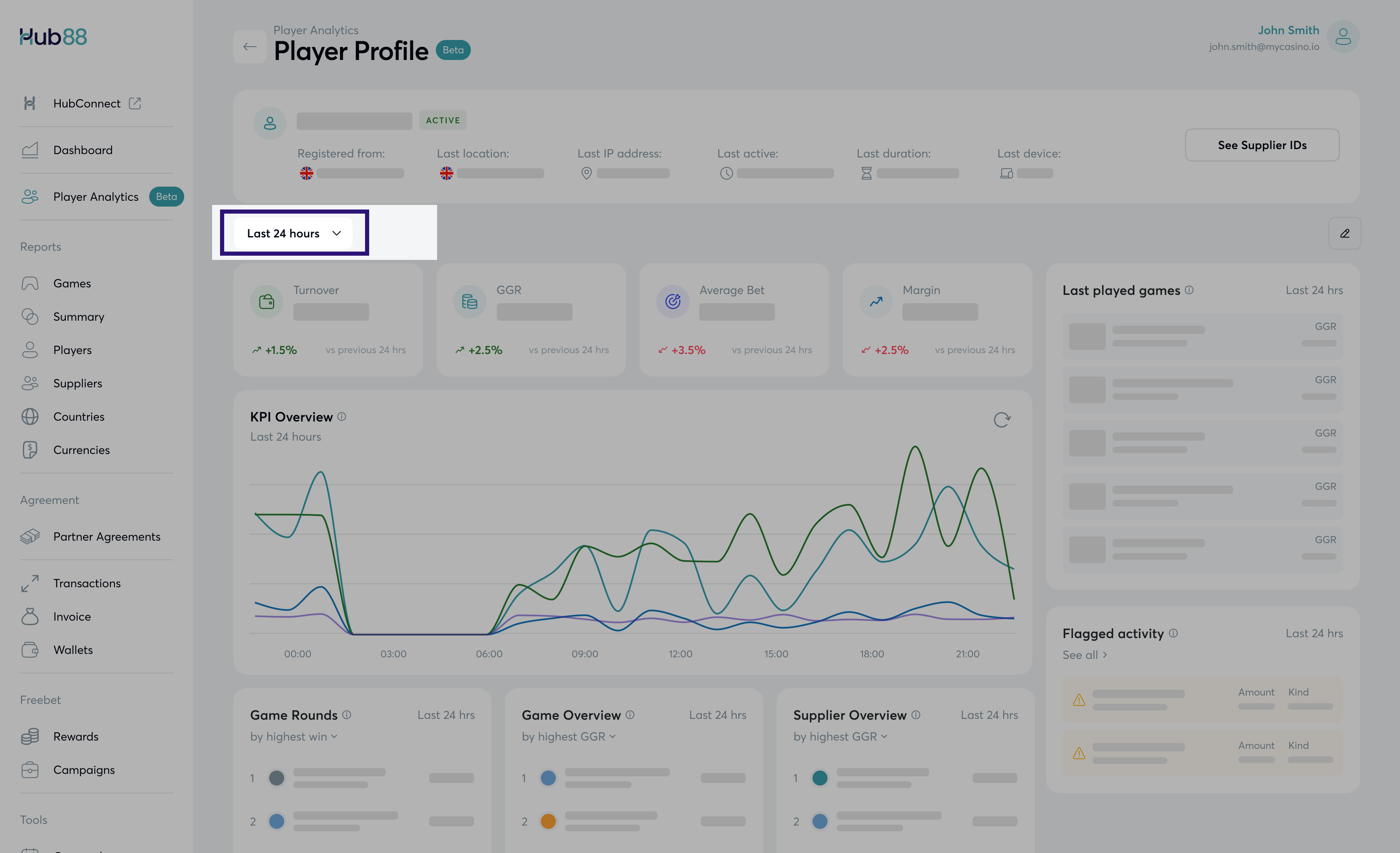
All dashboards and graphs can be viewed within different time periods. You can switch between the times to see further historical data to understand how the player has behaved.

To change the time, click on the timeframe block inside the Player Profile view.

The periods available to choose from are:

  • Today (default)

  • Yesterday

  • This week

  • Last week

  • This month

  • Last month

  • This year

Customising the Player Profile View

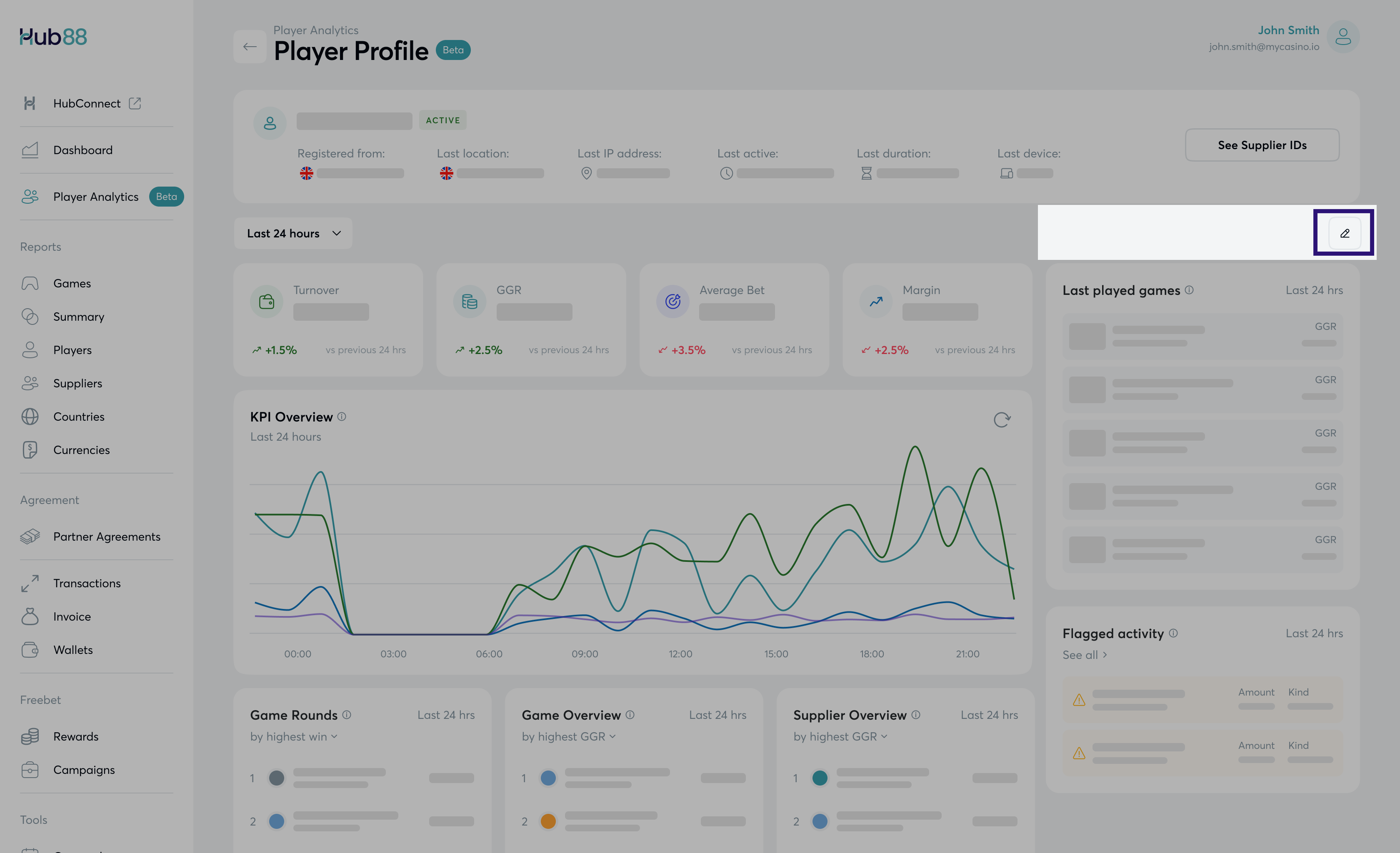
To customise the displayed charts and dashboards in the Player Profile view, simply click on the pencil icon on the left side, under the Key Performance Indicators panel. This will prompt you to select which charts will be shown.


Interpreting the Data

The graphs in the Player Profile View can be used on their own or by combining multiple sources of info to get a full picture overview.

Understanding Financial Health of the Player

  • What to look for? Sudden spikes or drops in the KPI Graph.

  • The Assumption: A sudden spike in “Wins” against flat “Bets” suggests a big win or potential error. A steady decline in “GGR” (Gross Gaming Revenue) over 30 days might indicate a VIP player is churning or losing interest.

Analysing Behavioural Patterns

  • What to look for? Look at the Game and Supplier Overview graphs. Is there a heavy concentration on a single game or provider?

  • The Assumption: If a player spends 90% of their time on a single supplier (e.g., Evolution), they are likely a Live Casino player. Marketing slots to them may be ineffective. Conversely, if a player only plays low-volatility games, they might be “grinding” to meet bonus wagering requirements.

Operational Validation

  • What to look for? Look at the Device, Country, Currency charts, are there inconsistencies or sudden changes?

  • The Assumption: If a player usually plays on Mobile from the UK using GBP, but suddenly logs in via Desktop from Brazil using USD, this is a strong indicator of account sharing or a hacked account.

Fraud Spotting

  • What to look for? Look at the Game Rounds and Flagged Activity charts to spot specific timestamps and red flags.

  • The Assumption: The Flagged Activity panel highlights system-generated alerts (e.g., failed deposits, suspicious bets). Use the Game Rounds list to cross-reference these alerts with the exact moment they happened, to see if the gameplay looks organic or automated/bot-like.

Last updated

Was this helpful?