> For the complete documentation index, see [llms.txt](https://docs.hub88.io/llms.txt). Markdown versions of documentation pages are available by appending `.md` to page URLs; this page is available as [Markdown](https://docs.hub88.io/hubconnect-operator-zone/customer-support.md).
# Customer Support
Learn how to create new support cases, reopen closed ones, and keep an eye on all communications with Hub88 support team.
***
The **HubConnect Operator Zone** offers a powerful, streamlined interface for managing support cases. Through the **Customer Support** section, you can easily create new cases, track ongoing support issues, and review case histories. This guide will walk you through the key features, including:
* **All cases:** view and manage all support cases in one place.
* **Creating a new case:** submit new support issues or requests.
* **Reopening cases:** reopen previously closed cases when further assistance is needed.
By using these tools, you can track issues, communicate with Hub88 support, and ensure timely resolution of all your cases.
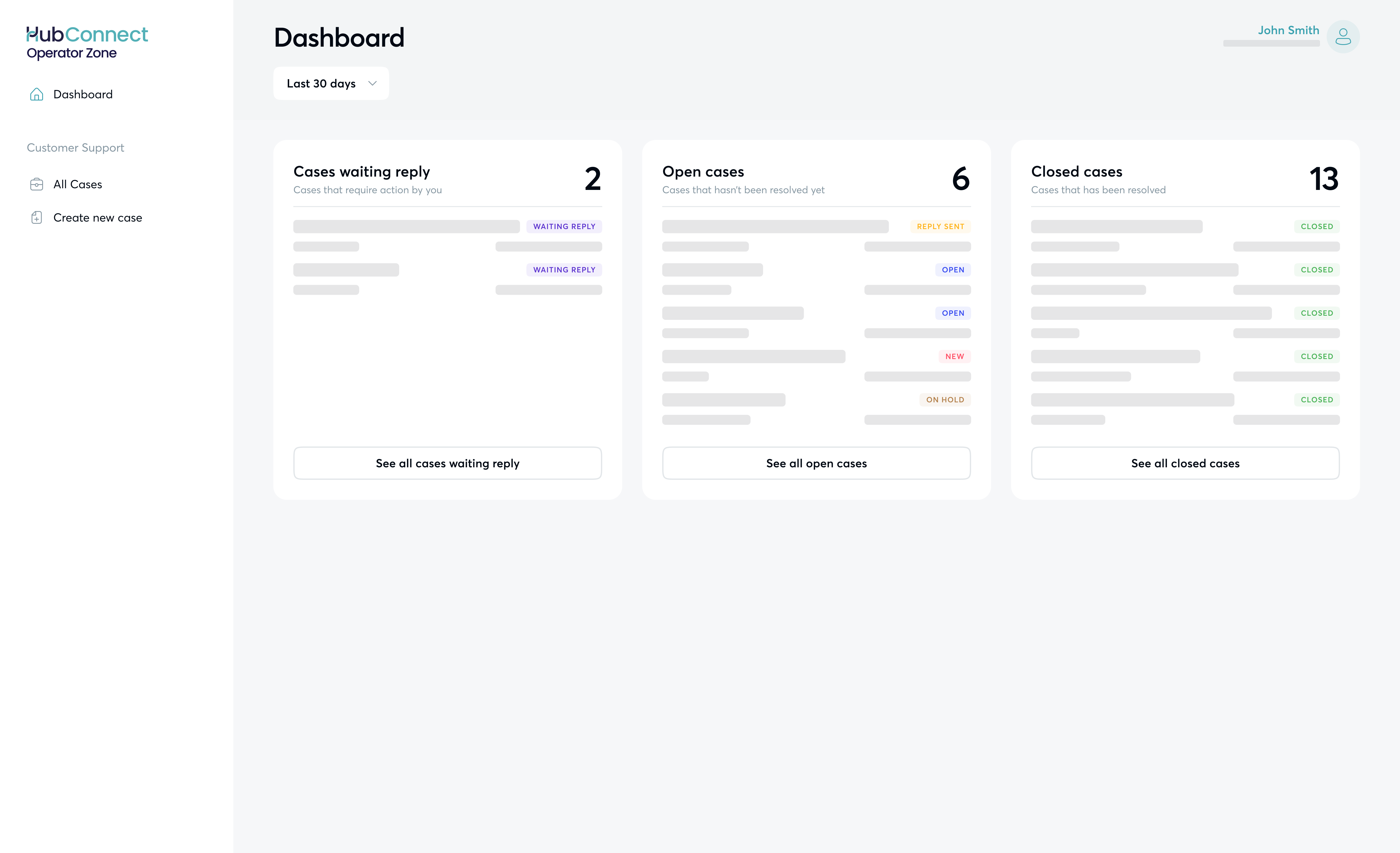
Customer support dashboard
***
### All cases
The **All cases** area provides two views: **dashboard** and **case detail** views. \
\
The **dashboard view** provides an overview of all support cases, including both historical and current information. You can easily see key case details, such as case number, subject, type, ticket creator, status, priority, and timestamps for creation and last modification.
Each case has also a separate status, which shows the progress of the ticket. Support case statuses include: **New**, **Open**, **Reply Sent**, **Waiting Reply**, **On Hold**, and **Closed**.
You can filter and search cases based on these details, including specific subjects, case numbers, or keywords within the support query.
When you select a case from the dashboard, you'll be directed to the **Case Details** page. Here, you’ll find the same overview information, along with the full communication history related to the ticket. You can also view all details submitted during case creation, including attachments. Additionally, you have the option to rate your experience with Hub88 and provide feedback.
{% hint style="info" %}
**Note**: Adding a comment under a case automatically reopens it. Once you do so, Hub88 customer support will be notified and the case will be reactivated for further assistance.
{% endhint %}
***
### Creating a new support case
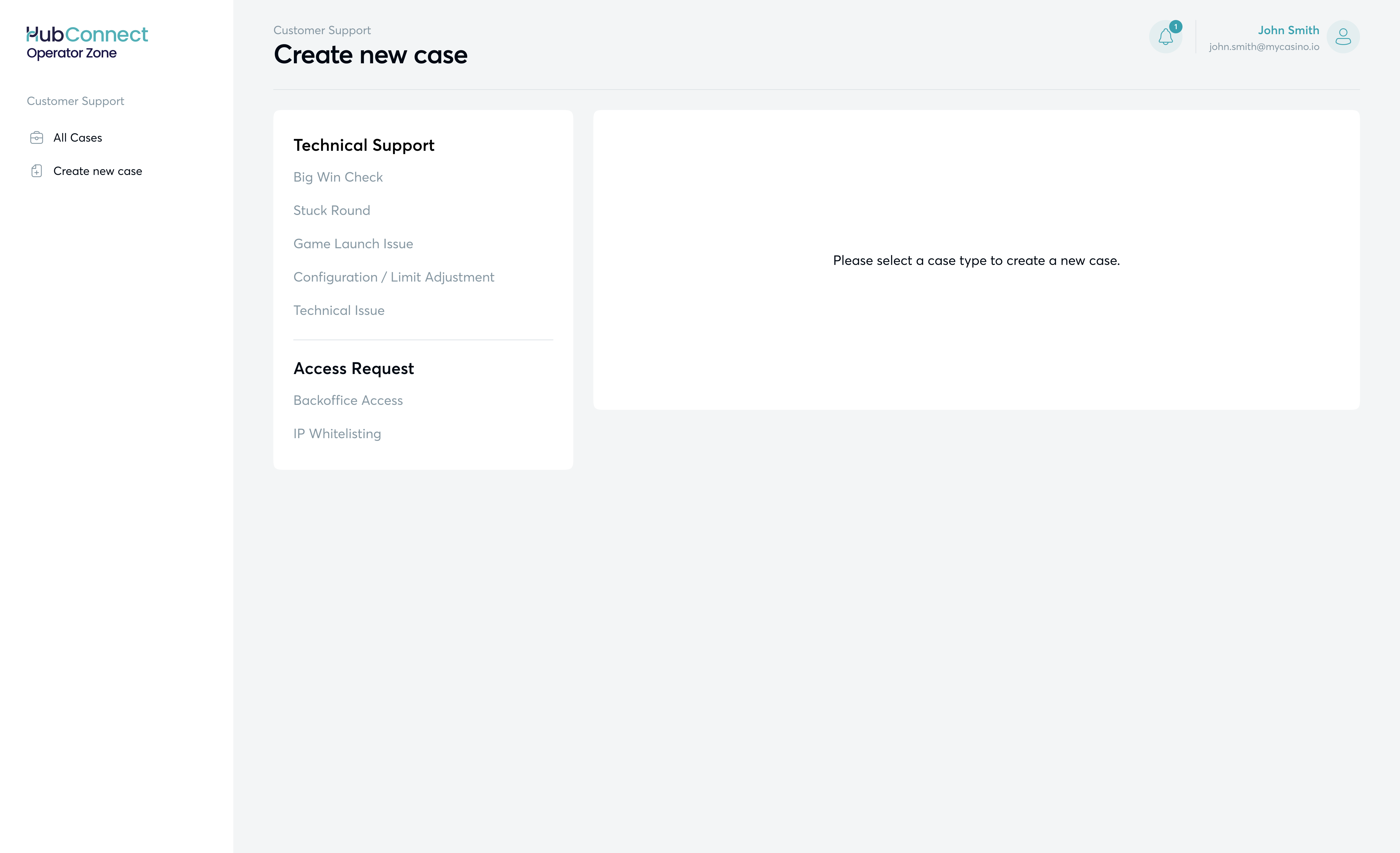
To create a new support case, you'll need to choose **Create new case** from HubConnect Operator Zone, under Customer Support area.
Creating a new support case
Next, pick the type of the case you wish to submit:
* Technical Support
* Big Win Check - validation for wins over 350x the initial wager amount, or additional checks for suspicious activity.
* Stuck Round / Missing transactions - issues where a player's bet or game outcome is not properly recorded, leading to discrepancies in results or account balances.
* Game Launch Issue - troubleshooting technical problems that prevent a game from starting or functioning correctly.
* Configuration / Limit Adjustment - issues with modifying game settings or adjusting player limits.
* Technical Issue - troubleshooting unforeseen technical concerns affecting game performance, account functionality, or user experience.
* Access Request
* Operator Backoffice Access - issues with access to the Operator Backoffice or HubConnect, or changes to permissions.
* IP Whitelisting - cases to add or change a specific IP address that needs to be whitelisted on Hub88 side.
Depending on the chosen issue type, you'll need to fill in the following info (click on issue type to expand).
Big Win Check
For this case type, please provide the following information:
* **Summary** — Subject line for the support ticket
* **Round ID**
* **User ID**
* **Win Amount in USD/EUR**
* Transaction UUID (optional)
* Time Range (optional)
* User Session Token (optional)
* Description of the issue — Describe what happened and the steps to replicate it. Please be as detailed as possible, this allows Hub88 representatives to solve the issue faster.
* File attachments (if applicable)
* Additional Contacts (optional) — Allows to specify further contacts who will be notified about the progress of this ticket.
Stuck Round / Missing transaction
If the issue is about specific users or specific time, please provide information about the effected User, Game, Round (if it's about a certain game round, then this is necessary) Transaction, Time, Session ID to expedite the ticket.
For this case type, please provide the following information:
* **Summary** — Subject line for the support ticket
* Time Range (optional)
* Game Name (optional)
* **User ID**
* **Round ID**
* **Description** — Describe what happened and the steps to replicate it. Please be as detailed as possible, this allows Hub88 representatives to solve the issue faster.
* File attachments (if applicable)
* Additional Contacts (optional) — Allows to specify further contacts who will be notified about the progress of this ticket.
Game Launch Issue
If the issue is about specific users or specific time, please provide information about the effected User, Game, Round (if it's about a certain game round, then this is necessary) Transaction, Time, Session ID to expedite the ticket.
For this case type, please provide the following information:
* **Summary** — Subject line for the support ticket
* Time Range (optional)
* User Session Token (optional)
* **Game Name**
* **Description** — Describe what happened and the steps to replicate it. Please be as detailed as possible, this allows Hub88 representatives to solve the issue faster.
* For **Game Launch issues,** please include the game **launch URL** and **any test credentials.**
* File attachments (optional)
* Additional Contacts (optional) — Allows to specify further contacts who will be notified about the progress of this ticket.
Configuration / Limit Adjustment
For this case type, please provide the following information:
* **Summary** — Subject line for the support ticket
* **Operator / Brand**
* **Description** (optional) — Describe what happened and the steps to replicate it. Please be as detailed as possible, this allows Hub88 representatives to solve the issue faster.
* File attachment (optional)
* Additional Contacts (optional) — Allows to specify further contacts who will be notified about the progress of this ticket.
Other Technical Issue
If the issue is about specific users or specific time, please provide information about the effected User, Game, Round (if it's about a certain game round, then this is necessary) Transaction, Time, Session ID to expedite the ticket.
For this case type, please provide the following information:
* **Summary** — Subject line for the support ticket
* Time Range (optional)
* User Session Token (optional)
* **Description** (optional) — Describe what happened and the steps to replicate it. Please be as detailed as possible, this allows Hub88 representatives to solve the issue faster.
* File attachment (optional)
* Additional Contacts (optional) — Allows to specify further contacts who will be notified about the progress of this ticket.
Operator Backoffice Access
For this case type, please provide the following information:
* **Summary** — Subject line for the support ticket
* **Operator name / Operator ID / Brand —** all need to be provided for successful account creation.
* **E-mail address**
* **Permissions** — type of permission needed for this user (account, brand, or operator)
* **Description** — Describe which account needs to be given additional or new access.
* File attachments (optional)
* Additional Contacts (optional) — Allows to specify further contacts who will be notified about the progress of this ticket.
IP Whitelisting
For this case type, please provide the following information:
* **Summary** — Subject line for the support ticket
* **Environment**
* **List of IPs** — We allow only 3 IPs per Operator and 5 IPs per Supplier. If you need to change IPs, please specify which IP should be removed and which one added.
* Description (optional)
* File attachments (optional)
* Additional Contacts (optional) — Allows to specify further contacts who will be notified about the progress of this ticket.
**Email notifications**
You will receive email notifications at the address linked to your HubConnect account whenever a new case is created or when there is an update to an existing case. To respond to the case or view its details, simply click the link in the email to access the case directly in HubConnect.
***
### Re-opening a closed case
To reopen a closed case, follow these steps:
* Navigate to **Customer Support > All Cases** in HubConnect and find the case you want to reopen.
* Select the case to go to the **Case Details** page.
* Add a **comment** in the case overview section, describing the issue you're facing.
* Once the comment is submitted, Hub88 customer support will be notified, and the case will be reopened for further attention.
---
# Agent Instructions
This documentation is published with GitBook. GitBook is the documentation platform designed so that both humans and AI agents can read, navigate, and reason over technical content effectively. Learn more at gitbook.com.
## Querying This Documentation
If you need additional information that is not directly available in this page, you can query the documentation by asking a question.
Perform an HTTP GET request on the following URL with the `ask` and `goal` query parameters:
```
GET https://docs.hub88.io/hubconnect-operator-zone/customer-support.md?ask=&goal=
```
`ask` is the immediate question: it should be specific, self-contained, and written in natural language.
`goal` is what the user is ultimately trying to achieve, the reason they need the answer. Sharing it helps GitBook give you a better, more relevant answer. A goal is most helpful when it describes the outcome the user wants rather than restating the question. For example, with `ask=how do I create an API token`, a goal like `automate deployments from our CI pipeline` lets GitBook tailor the answer to that use case.
The response will contain a direct answer to the question and relevant excerpts and sources from the documentation.
Use this mechanism when the answer is not explicitly present in the current page, you need clarification or additional context, or you want to retrieve related documentation sections.